Frequently Asked Questions
General Questions
What is SnapMagic Search?
SnapMagic Search is an electronics design data company. Our current product is an online CAD library that provides PCB footprints and schematic symbols for millions of electronic components. Our goal is to provide comprehensive coverage for all electronic components, along with full interoperability with EDA tools and transparency into quality. Our technology exports to all major design tools, including Cadence OrCAD/Allegro, Altium, Mentor PADS, Eagle, KiCad, PCB123, & Pulsonix.
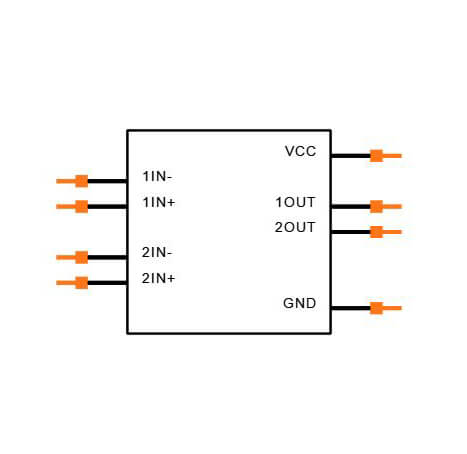
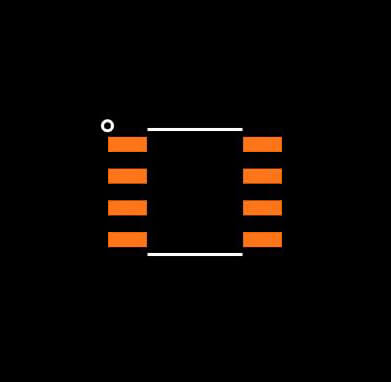
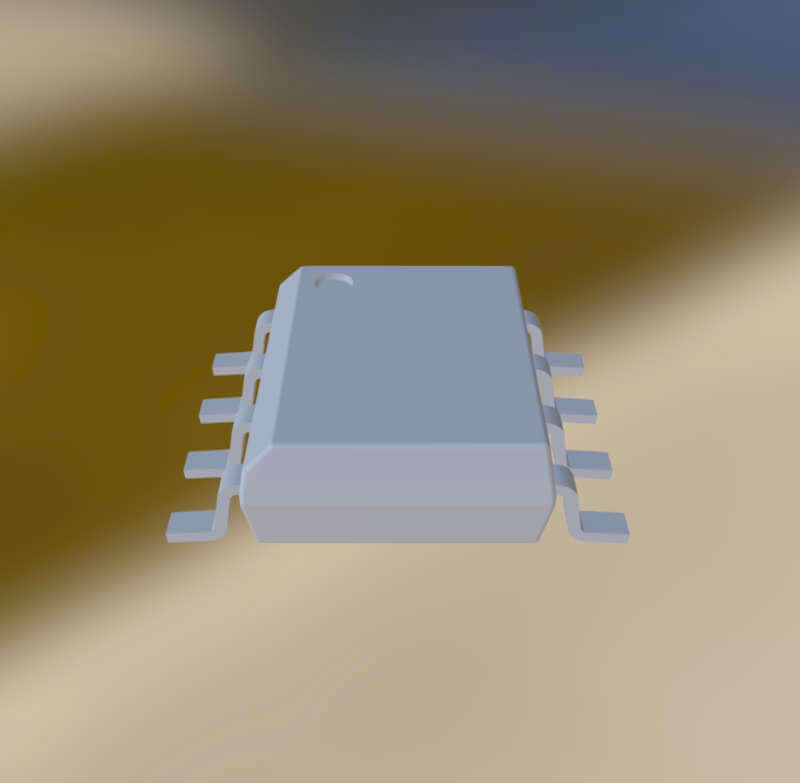
Going forward, SnapMagic Search plans to expand to other forms of design data. The same philosophy that we apply to our symbols & footprints will apply to these forms of data: interoperability with EDA tools and transparency into quality.
How can SnapMagic Search provide this service for free? How do you generate revenue?
We believe that having free, ready-to-use design data should be a fundamental right for electronics designers. Having the basic building blocks needed to get started capturing or laying out a design can help designers focus on what they're best at -- design -- rather than reinventing the wheel creating CAD parts. This added productivity fuels innovation, and that's what we're passionate about at SnapMagic Search.
Our basic CAD library of individually downloadable PCB footprints and schematic symbols will always be free for this reason.
Do you plan to introduce schematic capture or layout tools?
No. We consider ourselves an EDA data company and have no intentions of releasing any design software. We work collaboratively with existing EDA tools, rather than compete with them.
CAD Library Questions
Can I use CAD symbols, footprints, and 3D models in commercial designs?
Yes, the license for individual CAD symbols, footprints, and 3D models allows you to use them in commercial manufactured designs without attribution or other license restrictions. See What is the license for symbols and footprints for the full legal text.
What is the license for symbols, footprints, and 3D models?
The license for individual CAD symbols, footprints, and 3D models allows you to use them in commercial and non-commercial manufactured designs without attribution or other license restrictions (details below).
Individual CAD symbols, footprints, and 3D models on SnapMagic Search are licensed with a Creative Commons Attribution-ShareAlike 4.0 International License (CC BY-SA) with the Design Exception 1.0. This license allows designers to use CAD files downloaded from SnapMagic Search for commercial and personal use free of charge, and make derivative works. If CAD files, or derivatives thereof, are shared publicly, attribution must be given to the source (SnapMagic Search and the original author, as applicable), as outlined by the requirements of the license.
Use of the SnapMagic Search website is governed by the Web Site Terms and Conditions of Use.
In short, you cannot use the SnapMagic Search website for the purpose of sharing the content on the Internet or within an EDA tool, but otherwise you are free to use the files for designs.
What is the Design Exception 1.0?
The Creative Commons Attribution-ShareAlike 4.0 International License (CC BY-SA) normally applies to derivative works containing CAD symbols, footprints, and 3D models from SnapMagic Search, including designs, design files and manufactured boards. However, we decided that you should be able to use CAD symbols, footprints, and 3D models to design and produce any printed circuit board, regardless of the license. Therefore, the license for CAD symbols, footprints, and 3D models contains the following Design Exclusion 1.0:
You have permission to propagate a work of a design, design file(s) and/or manufactured board(s) formed by combining CAD symbols, footprints, and 3D models provided by SnapMagic Search, even if such propagation would otherwise violate the terms of CC BY-SA. You may then convey such a combination under terms of your choice.
What happens if I can't find the CAD part I'm looking for?
If the CAD part you need is not yet available on SnapMagic Search, you can request using our InstaPart service where you can get any part made within 1 business day for $29.
Additional, you can use our InstaBuild tool to generate the symbol instantly. Simple follow the instructions in the InstaBuild wizard to automatically build the symbol. The symbol will be connected to an IPC-compliant footprint and will be ready to download for all formats we support. InstaBuild is currently available on select parts.
How is SnapMagic Search providing transparency into the quality of CAD parts?
As a designer, it always necessary to verify symbol-to-footprint mappings and footprint dimensions before taking your boards to production.
Additionally, SnapMagic Search is innovating in this space by providing unprecedented transparency into the quality of CAD parts, helping designers catch errors before they happen. One example of this is the SnapMagic Search Checker. The checker runs algorithms through each CAD file to check for common manufacturing issues.
The checker runs through DFM rules, such as silkscreen clearance, solder mask/paste sizes, zero component orientation, and naming. The check also does unique full-data analysis to identify possible errors.
Additionally, users can also approve or disapprove CAD parts to provide a feedback loop to other designers.
SnapMagic Search provides only a starting point, but it should always be verified. We do, however, offer a verification system that allows engineers to vouch for parts, or flag issues they see. This is a feedback loop for any issues you may find in the CAD library, however while it serves as a general frame of reference, CAD data must always be verified before sending a design to manufacturing.
Where does SnapMagic Search get its CAD data from?
1) SnapMagic Search creates CAD data internally using a combination of automation algorithms and manual creation (the goal is to get to as full automation as possible)
2) SnapMagic Search is beginning to work more closely with semiconductor manufacturers to make their design content accessible on SnapMagic Search
What standards does SnapMagic Search follow?
All footprints created by SnapMagic Search conform to IPC standards, and all symbols follow a combination of ANSI IEC and our own internal symbol standards. As time goes on, we plan to incorporate more global standards and allow engineers to dynamically modify the CAD data to meet the standards in their particular geographic region or company.
Import/Export Questions
Which formats does SnapMagic Search export?
SnapMagic Search exports to OrCAD/Allegro, Altium, Eagle, KiCad, PADS, PCB123, and Pulsonix for symbols and footprints. We also export 3D models in STEP format which can be imported to most PCB tools.
How do I import SnapMagic Search parts into my PCB tool?
For detailed instructions on importing into your tool, please check out our import guide
I'd like to import my libraries to SnapMagic Search. What formats as supported for import?
Currently SnapMagic Search can mass import symbols and footprints from Eagle files. We plan to expand the functionality of our import tools based on demand. Please contact us if there's a software tool you'd like to see supported.
SnapMagic Search Plugins
How do I Install the SnapMagic Search Plugin for Eagle?
- Download the Eagle plugin
- Upon launching Eagle, you’ll see the Control Panel. Open Scripts > Eagle.scr and add the following line to the MENU area in both the BRD and SCH sections:
'[bin/snapeda.png] SnapEDA : Run ulp/snapeda.ulp;'\ - In the ulp folder in the Eagle application directory, save the snapeda.ulp file (Download latest version here)
- Also save the json.inc file (attached) into the ulp folder
- Place a copy of the downloaded .zip archive file contents in one of the paths in the scriptpath
- In the bin folder, add the snapeda.png icon from Downloaded folder.
You should now be able to open a board or schematic file and see the SnapMagic Search icon in your toolbar.
How do I Install the SnapMagic Search Plugin for Altium?
- Download the Altium plugin
- Extract the zipped folder contents to /Documents/SnapEDA
- Upon launching Altium, go to DXP > Run Script
- Select browse and point to the Snapeda.PrjScr script inside the /Documents/SnapEDA directory
- Click SnapEDA.vbs > SnapEDAPlugin to run the installation. Follow the prompts and re-start Altium.
- Run the SnapMagic Search plugin with the Ctrl+D shortcut, or from the File menu.
How do I Install the SnapMagic Search Plugin for PCB123?
- The SnapMagic Search plugin for PCB123 is already built into the tool, you can download PCB123 here.
API Questions
Does SnapMagic Search Have an API?
Yes! We have two APIs available depending on how you intend to use the data. Please contact us to learn more.
Contact
I have feedback on how to make the site better. Who should I contact?
Please use the Feedback button at the bottom of the page, or email us at [email protected].
I have more questions that aren't included here. Who can I contact?
Please email [email protected] for any further inquiries.